Exact Export for Jira — User guide
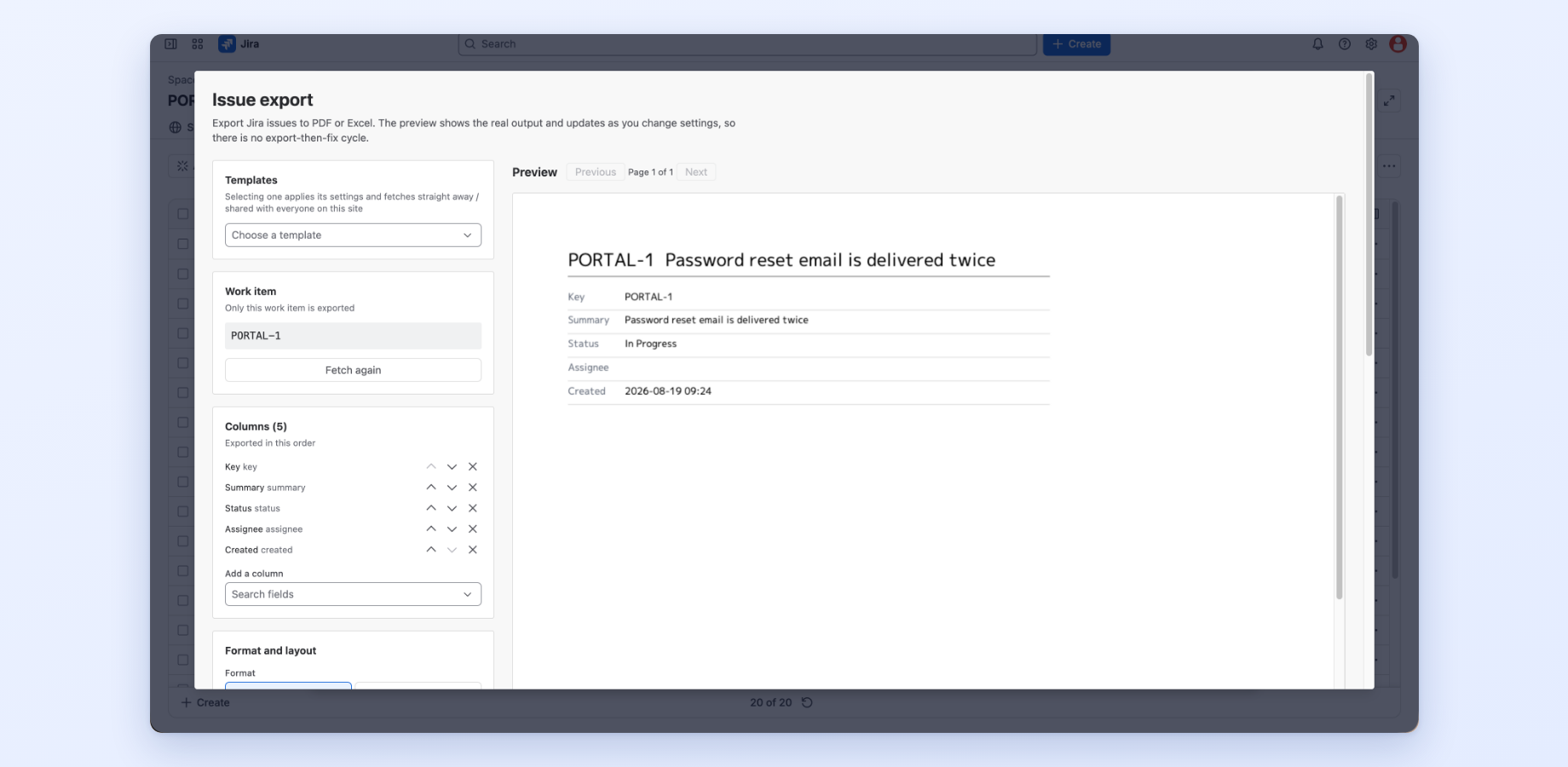
Exact Export turns Jira work items into a PDF you can circulate or an Excel workbook you can analyse. The preview on the right is the real file, rebuilt from the same bytes the Download button produces, so what you see is what you get.
This page is the documentation for the current release. If something here does not match what you see in Jira, write to support@offrou.com and we will fix one or the other.
Where to find it
The app appears in three places, all of which open the same screen.
| Where | What you get |
|---|---|
| Apps → Exact Export | The full screen. Choose any set of work items, edit columns and layout, preview, download |
| The Export panel on a work item | A compact panel on the right of the work item. Applying a saved template exports that one item in a click |
| ⋯ → Export to PDF or Excel… on a work item | The full screen in a modal, with the target fixed to that one work item |
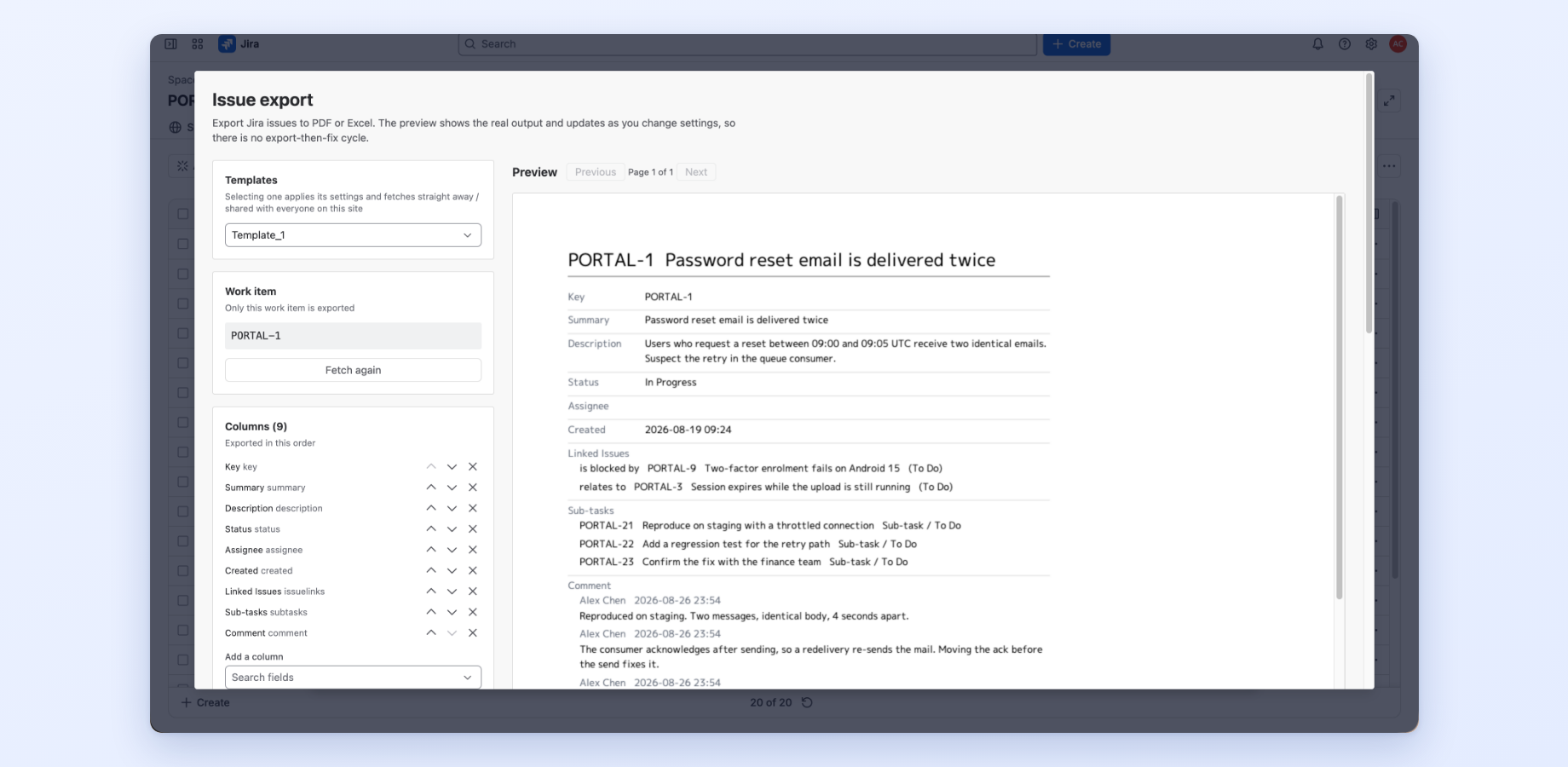
The five panels
Scope — which work items to export
Three ways to choose, on the Scope panel:
- Pick projects — select one or more. With none selected, every project you can see is included
- Pick a filter — one of your saved Jira filters. The filter's own JQL and sort order are used
- Write JQL — free-form. This is JQL, not SQL; there is no
SELECT ... FROM, only the conditions
Sort order and a Fetch limit apply to all three. Then select Fetch from Jira.
Everything is read as you, with your own Jira permissions. An export can never contain a work item you could not already open in Jira.
Columns — what goes in each row
Add any Jira field as a column, custom fields included. The order in the panel is the order in the output; move a column up or down to change it.
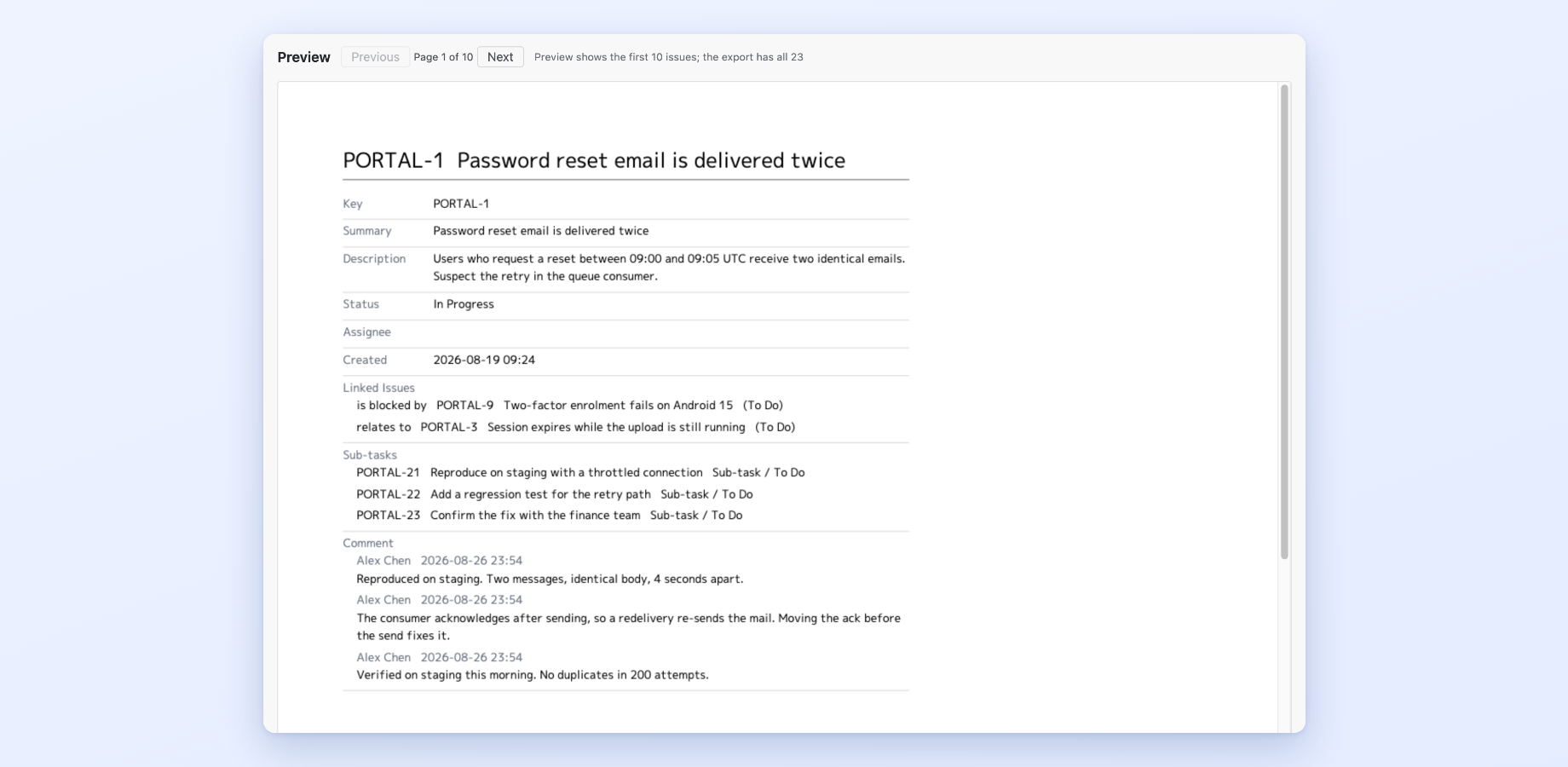
Five fields are treated as detail blocks rather than plain cells: issue links, subtasks, comments, work logs and attachments. In PDF they are listed underneath the fields on the page. Above 100 work items they are summarised onto a single line instead, so a large export stays a usable size.
Format and layout
| Setting | Options |
|---|---|
| Format | PDF or Excel. PDF prints one work item per page; use Excel for a table |
| Paper | A4 portrait or A4 landscape |
| Font size | Adjustable in points |
| Date format | Date only, date and time, or the raw value |
| Row lines | Show or hide the ruled lines |
| Hide empty columns | Drops columns where every fetched row is empty, and tells you how many were dropped |
| Heading / Sheet name | Printed at the top of the PDF, or used as the Excel sheet name. Either way it becomes the file name |
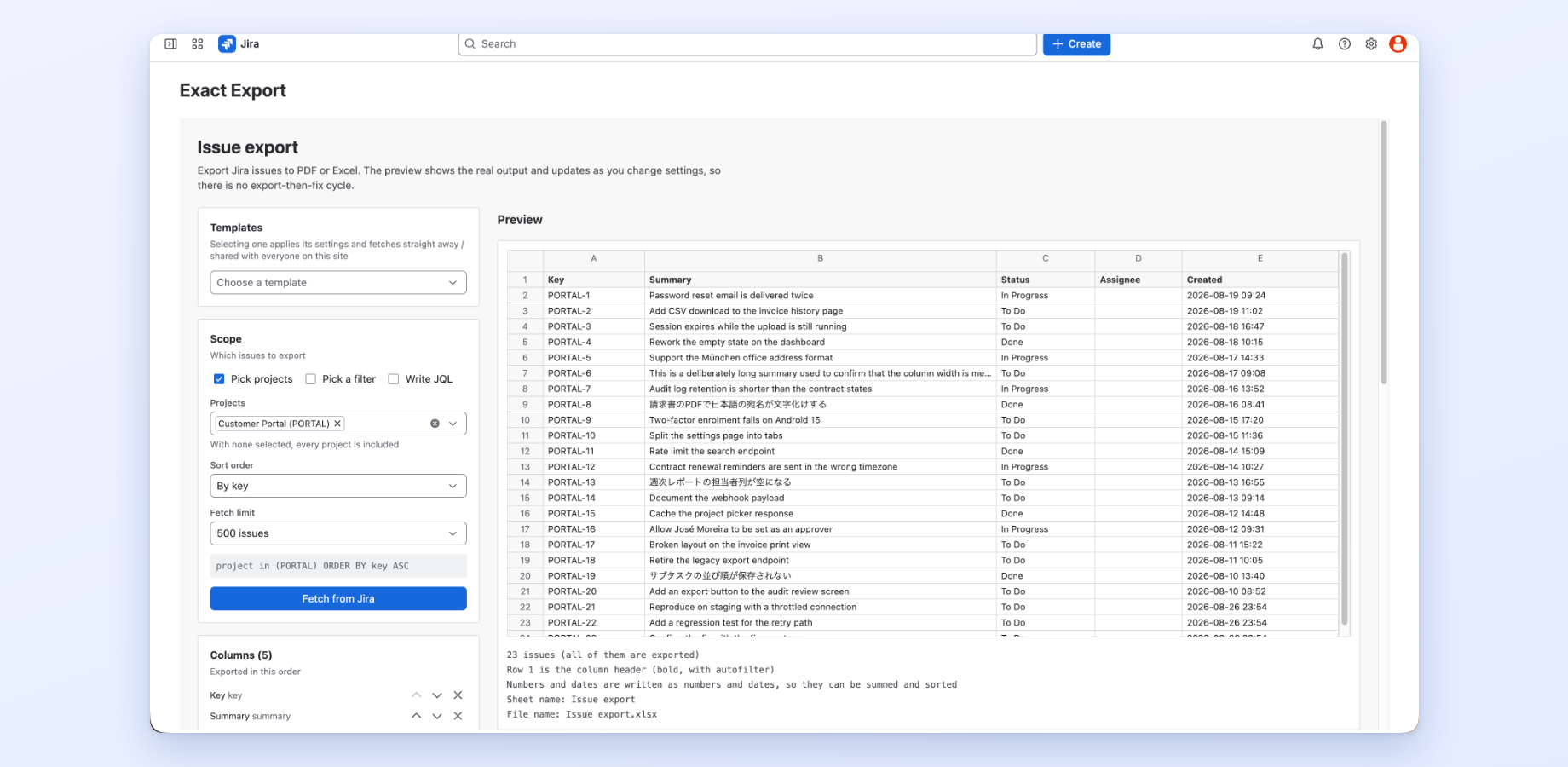
Preview — the real file, not a mock-up
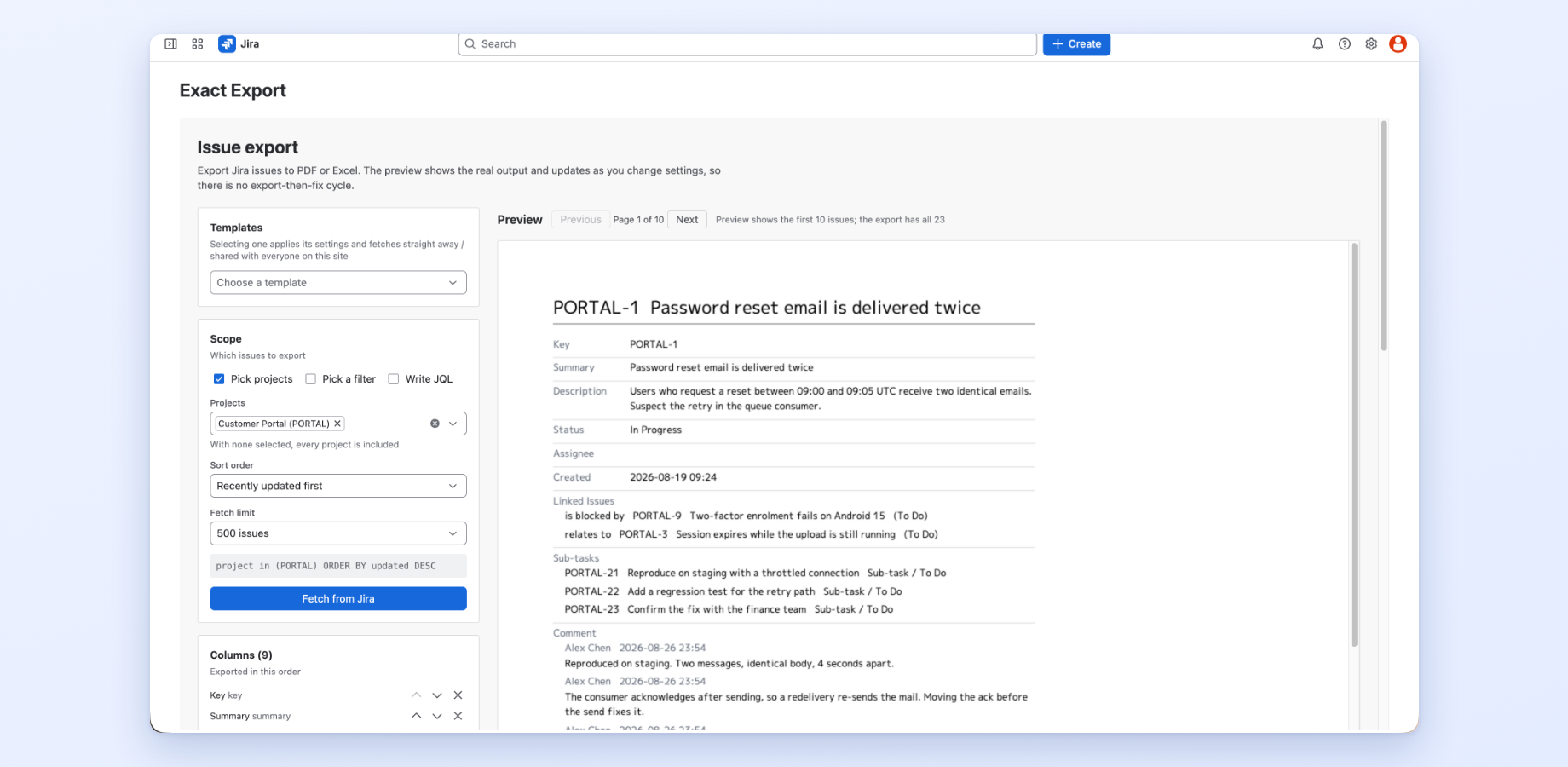
The preview renders the actual PDF or Excel workbook and redraws in about 200 milliseconds when you change a setting. It shows the build and render time so you can see it is genuine work.
For speed the preview is capped: the first 10 work items for PDF, the first 60 rows for Excel. The export itself always contains everything you fetched, and the preview says so.
Export — download
Select Download. The file name comes from the heading or sheet name.
Templates
Save a set-up under a name and it comes back in one click. Selecting a template applies its settings and fetches straight away.
A template stores: target projects, filter conditions, columns and their order, format, paper, font size, date format and heading.
Templates are shared with everyone on the site. They are a team asset, not a personal one — so name them for the job they do, not for yourself.
When the app stops you
Exact Export refuses to hand you a file it knows is wrong.
Settings changed after the last fetch. If you add a column, change the fetch limit or change the filter conditions after fetching, the preview is still showing the old data. The app says so and pauses downloading until you select Fetch from Jira again.
Characters the PDF font cannot draw. The embedded font covers Japanese, Latin, Cyrillic and Greek, but not emoji, Hangul or Simplified-Chinese-only characters. Rather than dropping them silently, the app names how many it found and offers the fix: switch the format to Excel, which does not embed a font and keeps the original characters.
Licensing
Choosing, fetching and previewing work without a licence. A licence is needed only to download files. Start a free trial or subscribe from the Atlassian Marketplace — a Jira administrator does this from Apps → Manage apps.
Pricing is per user on your Jira instance, billed by Atlassian. Sites with 10 users or fewer are free.
Your data
Exact Export participates in Atlassian's Runs on Atlassian programme. It makes no network request to any host outside the Atlassian cloud. Work item data is read with your own permissions and the document is built inside your browser — there is no rendering service and no font CDN to send anything to, because we do not operate one.
Saved templates are the only thing stored, and they are kept in Forge app storage inside Atlassian. Full detail is in the privacy policy.
Support
Write to support@offrou.com. Include the Jira site, what you were exporting and what you expected instead — for a rendering problem, the exported file itself is the most useful thing you can attach.
Exact Export for Jira — 使い方
Exact Export は Jira の課題を、配れる PDF か、分析できる Excel ブックに書き出します。 右側のプレビューは実物のファイルで、ダウンロードが出すのと同じバイト列から描いています。 見えているものがそのまま出ます。
このページは現行リリースの説明です。Jira の画面と食い違っていたら support@offrou.com までご連絡ください。どちらかを直します。
入口
3 か所にあります。開く画面はどれも同じです。
| 場所 | できること |
|---|---|
| アプリ → Exact Export | 全機能。対象を自由に選び、列と体裁を編集し、プレビューして書き出す |
| 課題ビュー右の 書き出す パネル | 課題ビューの中の小さなパネル。保存済みテンプレートを選べば、その 1 件を 1 クリックで書き出せる |
| 課題の ⋯ → PDF / Excel に書き出す… | 全機能をモーダルで。対象はその課題 1 件に固定される |
5 つのパネル
対象 — どの課題を書き出すか
対象パネルで 3 通りから選べます。
- プロジェクトで選ぶ — 複数可。何も選ばなければ、閲覧できる全プロジェクトが対象
- フィルターから選ぶ — 保存済みの Jira フィルター。フィルター側の JQL と並び順がそのまま使われる
- JQL を書く — 自由記述。これは SQL ではなく JQL です。
SELECT ... FROMは無く、条件だけを書きます
並び順と取得上限は 3 通りとも共通です。決めたら「Jira から取得」を押します。
読み取りはすべてあなたとして、あなた自身の Jira 権限で行われます。Jira で開けない課題が 書き出しに混ざることはありません。
列 — 各行に何を入れるか
任意の Jira フィールドを列にできます。カスタムフィールドも同じです。パネルの並び順が そのまま出力の並び順になるので、入れ替えたいときは上下に動かします。
5 つのフィールド(課題リンク・サブタスク・コメント・作業ログ・添付)だけは、 セルではなく明細として扱われます。PDF ではフィールドの下に一覧で並びます。 100 件を超えると 1 行にまとめた表示に切り替わります。大量に書き出したときに 現実的な分量に収めるためです。
形式・体裁
| 設定 | 選べるもの |
|---|---|
| 形式 | PDF か Excel。PDF は 1 件 1 ページの単票、一覧が要るときは Excel |
| 用紙 | A4 縦・A4 横 |
| 文字サイズ | pt 単位で調整 |
| 日時の書式 | 日付のみ・日付と時刻・生の値 |
| 罫線 | 表示・非表示 |
| 空の列を隠す | 取得した全行が空の列を落とします。何列落としたかを表示します |
| 見出し / シート名 | PDF の先頭に印字、または Excel のシート名。どちらもファイル名になります |
プレビュー — 実物
実際の PDF / Excel ブックを描画し、設定を変えると約 200 ミリ秒で描き直します。 生成時間と描画時間を表示しているので、本物を作っていることが確認できます。
速度のためプレビューには上限があります。PDF は先頭 10 件、Excel は先頭 60 行。 書き出すファイルには取得した全件が入ります。その旨も画面に出ます。
出力 — ダウンロード
「ダウンロード」を押します。ファイル名は見出し(またはシート名)から付きます。
テンプレート
設定に名前を付けて保存すると、次からは 1 クリックで戻せます。テンプレートを選ぶと、 設定が適用されそのまま取得まで走ります。
保存されるもの: 対象プロジェクト / 絞り込み条件 / 列とその順番 / 形式 / 用紙 / 文字サイズ / 日時書式 / 見出し。
テンプレートはサイト全体で共有されます。個人のものではなくチームの資産なので、 自分の名前ではなく用途で名付けてください。
止められるとき
Exact Export は、間違っていると分かっているファイルを渡しません。
取得後に設定を変えたとき。 列を足す・取得上限を変える・絞り込み条件を変えると、 プレビューは前回取得したデータのままです。その旨を表示し、 「Jira から取得」をもう一度押すまでダウンロードを止めます。
PDF のフォントに無い文字。 埋め込みフォントは日本語・ラテン・キリル・ギリシャを カバーしますが、絵文字・ハングル・簡体字専用の文字は入っていません。黙って消さず、 何文字あるかを知らせたうえで対処を示します。形式を Excel にすればフォントを 埋め込まないので元の文字のまま出ます。
ライセンス
選択・取得・プレビューはライセンス無しで使えます。ライセンスが要るのは ダウンロードだけです。Atlassian Marketplace で無料トライアルを開始するか購入してください。 Jira 管理者が「アプリ」→「アプリの管理」から操作できます。
価格は Jira インスタンスのユーザー数に応じた課金で、請求は Atlassian が行います。 10 ユーザー以下のサイトは無料です。
データの扱い
Exact Export は Atlassian の Runs on Atlassian に参加しています。Atlassian クラウドの 外にあるホストへは一切リクエストしません。課題データはあなたの権限で読み、 書類はあなたのブラウザの中で組み立てます。送る先のレンダリングサービスもフォント CDN も、 そもそも運用していないので存在しません。
保存されるのはテンプレートだけで、Atlassian 内部の Forge ストレージに置かれます。 詳細はプライバシーポリシーにあります。
サポート
support@offrou.com までご連絡ください。Jira サイト・何を書き出そうとしたか・ 期待した結果を書き添えてください。描画の問題であれば、書き出されたファイルそのものが 最も有用です。